Your first piece
Goal
Draw a small piece from the keyboard alone, sign it, give it a title and save it. The piece is an ace of hearts, 11 columns by 11 rows, at 1×:
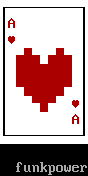
and at 2×:
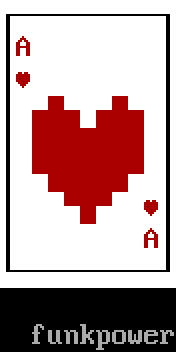
The idea
Keyboard mode
Blockwright starts in keyboard mode (Tools > Keyboard, Ctrl+K). There is a cursor on the canvas, one cell, and typing works like a text editor that never inserts: every glyph you type goes into the cell under the cursor, replacing what was there, and the cursor moves one cell right. On the last column of a row it stays put, so typing on goes on replacing that last cell.
| Key | What it does |
|---|---|
| a letter, digit or symbol | types it, if CP437 has it |
| F1 to F10 | types a glyph from the current F-key set |
| arrows | move the cursor a cell |
| Home, End | the first and the last column of the row |
| Enter | the first column of the next row |
| Backspace | clears the cell to the left and moves there; the rest of the row doesn't shift |
| Delete | clears the cell under the cursor |
| a click | puts the cursor on that cell |
A cleared cell is a space in the default colours, grey on black.
F-key sets
Most of the glyphs ANSI art is drawn with aren't on a keyboard, so the F-keys type them. F1 to F10 give ten glyphs, and which ten depends on the F-key set. There are sixteen sets:
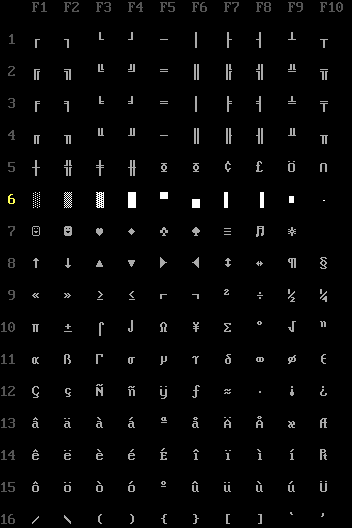
Sets 1 to 4 are the four kinds of box-drawing frame, single and double lines and the two mixes. Set 6, the shade and half blocks, is the one Blockwright starts with; set 7 has the card suits and set 16 the ASCII brackets and slashes.
The status bar shows the set you're on, F-keys set 6: ░ ▒ ▓ █ ▀ ▄ ▌ ▐ ■ ·, and so does the Glyphs dock at the bottom of the window: ten buttons labelled F1 to F10, which type their glyph when clicked, and a list to pick the set from. The Glyphs menu changes the set from the keyboard:
- Ctrl+, and Ctrl+., the previous and the next set (Previous Set, Next Set);
- Ctrl+/, back to set 6 (Default Set);
- Ctrl+Shift+F1 to F10, sets 1 to 10 directly. Sets 11 to 16 are in the menu.
The pen
Every glyph you type goes in in the pen: a foreground and a background colour. The Palette dock shows the pen as two squares, the foreground over the background; left-click a swatch for the foreground and right-click one for the background. The Colours menu steps the pen from the keyboard, through the colours in palette order and round from the last to the first:
- Ctrl+Up and Ctrl+Down, the previous and the next foreground;
- Ctrl+Left and Ctrl+Right, the previous and the next background;
- Ctrl+D, back to grey on black (Default Colours).
Undo
Every keystroke that changes the canvas is a step of its own. Ctrl+Z (Edit > Undo) takes the last one back and puts the cursor back where it was before it; Ctrl+Shift+Z (Edit > Redo) puts it back again.
SAUCE
An .ans file can carry a short record after the art, called SAUCE: the piece's title, its author, the author's group, the date, a few lines of comments, and settings such as iCE colours. Art archives and viewers read it to list and show the piece. Blockwright writes a SAUCE record into every .ans it saves, and File > SAUCE... is where you fill it in.
Do it
-
Make the canvas. Start Blockwright. On the start screen, under New, set Width to 11 and Height to 11, leave iCE colours ticked, and press New. (If Blockwright is already open, File > Start Screen... brings the start screen back.) The card takes rows 0 to 8; the signature goes under it in row 10.
-
The top edge. The card is white with a black frame, so the pen is black on white:
- press Ctrl+Left once: the background steps back from black, round to white, the last colour;
- left-click black, the first swatch in the Palette, for the foreground.
Press Ctrl+Shift+F1 for set 1, the single-line frame; the status bar now reads F-keys set 1: ┌ ┐ └ ┘ ─ │ ├ ┤ ┴ ┬. Click the top-left cell,
0, 0. Press F1 for┌, then hold F5 (─) until the line reaches the right edge. The cursor stops on the last column, so finish with F2:┐replaces the last─.
-
The sides. Press Enter to go to the start of row 1. Press F6 for
│, hold Space to the right edge, and press F6 again. A space in this pen is a white cell. Do the same for rows 2 to 7: Enter, F6, Space held, F6.
-
The bottom edge. Enter, then F3 for
└, F5 held to the edge, and F4 for┘.
-
The corners. Left-click red, the fifth swatch, for the foreground; the background stays white. Click
1, 1(the status bar shows where the cursor is) and typeA. Press Ctrl+Shift+F7 for set 7, ☺ ☻ ♥ ♦ ♣ ♠ ≡ ♫ ☼, click1, 2and press F3 for♥. In the opposite corner, the heart goes over the A: click9, 6, F3, then click9, 7and typeA.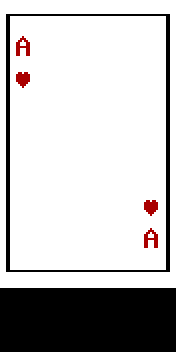
-
The heart, top half. Press Ctrl+/ to go back to set 6, the blocks.
█(F4) fills a whole cell in the foreground, and▄(F6) and▀(F5) fill its bottom or its top half, the other half showing the background. Half blocks let the heart's outline step in half cells; tutorial 03 is about drawing with them.Click
2, 3and type the heart's two humps: F6 F4 F6 Space F6 F4 F6. Click2, 4and press F4 seven times.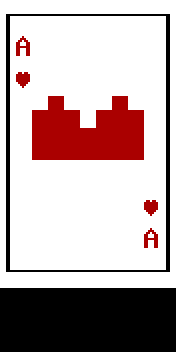
-
A slip, and the rest of the heart. The next row starts with
▀. Click2, 5and press F6, the wrong half block: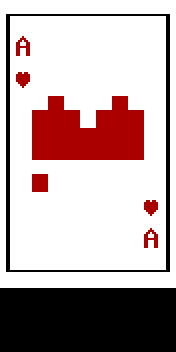
Press Ctrl+Z. The
▄goes and the cursor is back on2, 5. (Ctrl+Shift+Z would bring the slip back; leave it undone.) Now type the row: F5, F4 five times, F5. For the point, click4, 6and type F5 F4 F5.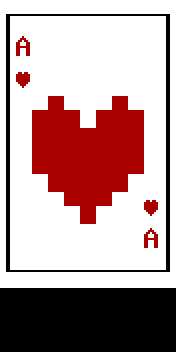
-
Sign it. Press Ctrl+D for grey on black, click
2, 10, under the card, and type your name or nick. From2, 10to the right edge there is room for 9 characters, as many as funkpower has. For a name of 10 or 11, click0, 10instead. A longer one doesn't fit: the cursor stays on the last column, so every character past the edge replaces the last cell. Shorten it, or sign with your initials.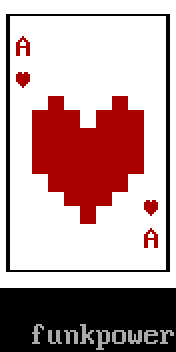
-
Fill in the SAUCE. Open File > SAUCE.... Type
Ace of heartsin Title, your name or nick in Author, and your group in Group if you have one; leave it empty if not. Date is today's (the Today button sets it again), and Comments can stay empty. Title, Author and Group take only as many characters as the number in their label, and refuse a character CP437 doesn't have. A comment line holds 64; the dialog says so under the fields if one is longer. Press OK. -
Save. Press Ctrl+S (File > Save). A piece that has never been saved asks for a name, so the Save As dialog opens, with ANSI art (*.ans) as the file type. Name it
ace-of-hearts.ansand save. The window title changes from untitled.ans to ace-of-hearts.ans, and the status bar says Saved and the path. From now on Ctrl+S saves over the same file without asking.
Check it
No frame edge lost on the last column, no stray cell on a frame. Let go of F5 one cell early in step 2 and the ┐ lands one column short: the last cell of the row is still blank, grey on black, a notch out of the card's top-right corner. Margins off the frame, and the left and right margins match: the heart has one white column between it and the frame on each side, not none on one side and two on the other. Three cards: a corner short, a heart off centre, and the card as it should be:
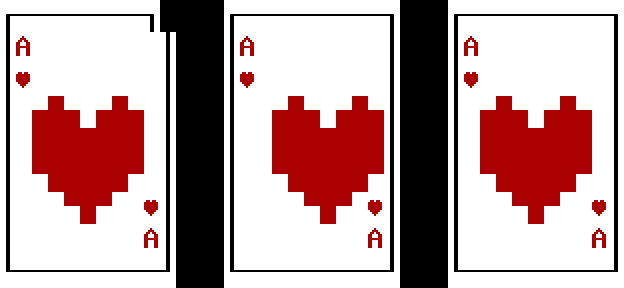
To mend a short corner, click the ┐ and, with the pen black on white and set 1, type ─ over it with F5 (the cursor then moves to the last column), and press F2.
Judge it at 1×. The Preview (1x) dock shows the card at its real size: the A and the hearts in the corners should still read as an A and hearts.
The signature is there, legible, and off the frame. Sign under or beside the art, not over its edge.
The SAUCE went in. The command-line tool shows a file's SAUCE:
blockwright-cli info ace-of-hearts.ans
It prints the size, 11x11, then the SAUCE fields: the title, Ace of hearts, your name as the author, and the date.
Try it
Download try.ans and open it (File > Open, Ctrl+O). It is an empty card:

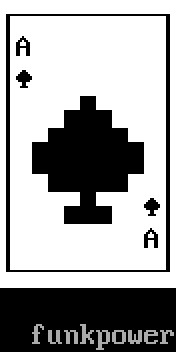
Make it the ace of spades, in black: an A and a ♠ in each corner, a big spade in the middle, your signature, Ace of spades as the SAUCE title, your name or nick as the author and today's date, and save it under a new name with File > Save As... (Ctrl+Shift+S). A spade is a heart upside down, with a short stem. Which F-key is ♠, and in which set?
Answers
♠ is F6 in set 7 (Ctrl+Shift+F7).
Set the pen to black on white. Press Ctrl+D first, for grey on black: Ctrl+Left steps back from whatever background the pen has, and opening a file doesn't change the pen, so after mending a corner in Check it the pen is already black on white and one press would give yellow. Then, as in step 2, press Ctrl+Left once for a white background, and left-click black, the first swatch, for the foreground. Type the corners as in step 5, but keep the black foreground, and press F6 for ♠ where step 5 has F3. Then one way to draw the big spade, in set 6 (Ctrl+/):
4, 3: F6 F4 F6, the point (▄█▄);2, 4: F6, F4 five times, F6 (▄█████▄);2, 5: F5, F4 five times, F5 (▀█████▀);4, 6: F6 F4 F6, the stem and its foot (▄█▄).
Sign it as in step 8, with Ctrl+D first.
File > SAUCE... opens with the card's own SAUCE filled in: An empty card, by funkpower, and the day the card was made. Replace all three: Ace of spades in Title, your name or nick in Author, and press Today for the date.
Tutorial 03, Pixels with half blocks, goes on from here: drawing in half cells, two pixels to a cell.
Describes Blockwright 0.1.0 (c44974c).